How to Run a 90-Minute Restore Drill (and Why Backups Without Drills Fail)
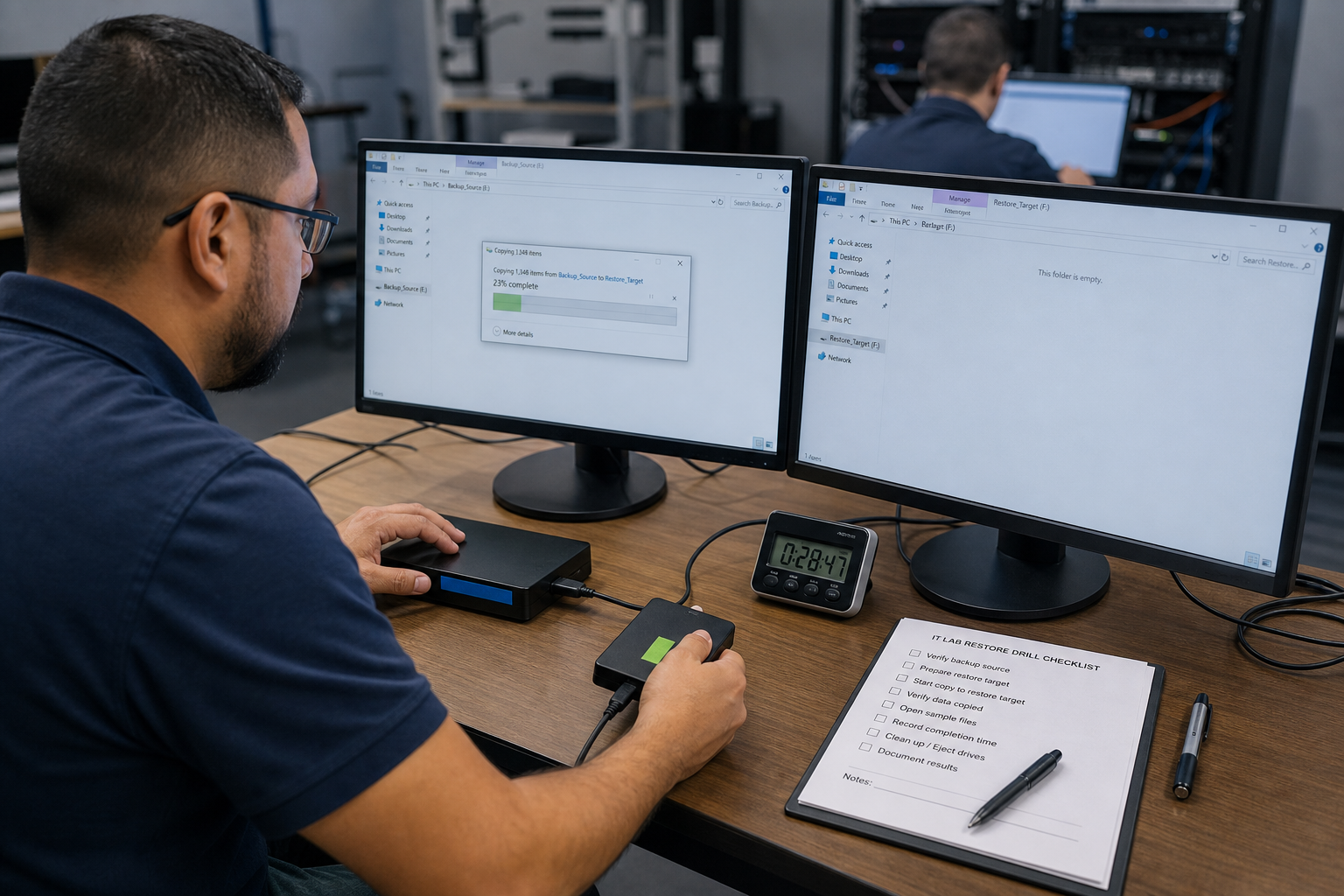
A tabletop-plus-live exercise: pick one folder or mailbox, restore to a side path, open real files, time the work, and write down what broke — without touching production.

- A backup job that has never restored is an unverified hope, not a control.
- Restore to a side path named for the drill date — never onto the live tree.
- Success means a human opened sample files, not that a progress bar hit 100%.
- Ninety minutes is enough for one workload; rotating workloads beats one giant annual test.
Why drills exist
Backup software loves green checkmarks. Incidents do not. The gap is almost always people, paths, and permissions: the person who knew the NAS password left, the restore target was full, or the “backup” was a sync folder. A restore drill is a timed rehearsal that exposes those gaps while everyone is calm.
Scope: one workload, one hour and a half
Do not restore the company. Pick:
- One shared mailbox folder with attachments, or
- One project folder of mixed Office, PDF, and images (about 2–10 GB is plenty)
Write the RTO you claimed for that workload on the whiteboard. The drill either beats it or it does not. There is no partial credit for “the bytes moved.”
Minute 0–15: tabletop
- Who is allowed to restore? Who has the second factor?
- Where does the copy live (and is that disk actually mounted)?
- Where will the restore land? Create
D:\restore-drill-YYYYMMDDor an empty SharePoint library used only for drills. - How will you know it is the right point-in-time?
If you cannot answer these without Slack archaeology, the drill has already paid for itself — and you have not copied a file yet.
Minute 15–70: live restore
Start a timer. Restore the slice to the side path. Do not pause production sync. Do not “help” by restoring into the live Drive.
When the job says complete:
- Open five files of different types.
- Open one email with a nested attachment.
- Check that a known filename from last week is present.
- Note anything that failed: permissions, truncated PST, 0-byte files, wrong date.
Minute 70–90: write the record
A drill without notes is a story. Capture: start/stop time, who ran it, source copy date, target path, sample results, blockers, next fix owner. Compare elapsed time to your stated RTO. If restore took 50 minutes but finding the disk took 40, your RTO is 90, not 50.
Delete the side-path data on a schedule (for example 14 days) so drills do not become a new shadow archive of personal data. Treat drill copies as production-sensitive.
Rotate so you do not game the test
Next quarter, pick a different owner’s data, a Shared Drive instead of My Drive, or a mailbox that uses litigation hold. The goal is to distrust comfort, not to pass the same exam twice.
Related reading
Set the target times with RPO and RTO in plain language. Keep the operational list in the IT admin backup checklist.