The First 60 Minutes After a Mass Delete
An incident playbook for IT: freeze further damage, classify the loss, use Trash and Recycle Bin correctly, and restore to a side path before you overwrite anything live.


- Stop the bleeding: pause sync clients and revoke risky tokens before you restore.
- Classify: delete vs overwrite vs hide vs account lockout — each path is different.
- Native recycle tools are the first restore source, not Takeout and not a full tenant export.
- Restore to a side path. Verify. Then copy back.
Minute 0–10: freeze, do not “fix”
The instinct is to restore immediately. If a sync client or attacker is still connected, restore becomes a race you lose. First:
- Identify which account and which machine last modified the tree (Drive activity / OneDrive version history / audit logs if you have them).
- Pause Drive for desktop / OneDrive / Offline Files on suspect PCs. Unplug is acceptable.
- If an admin session looks wrong, reset that password and revoke sessions. Do not wait for a perfect forensic picture.
- Stop well-meaning colleagues from emptying Trash “to help.”
Minute 10–20: classify the incident
| What you see | Likely class | First restore tool |
|---|---|---|
| Items in Trash / Recycle Bin | Delete | Restore from recycle, then verify |
| Files present but contents wrong | Overwrite or ransomware | Version history; do not restore from Trash |
| Files missing locally, still in the web UI | Sync / filter / selective sync | See sync-conflict playbook |
| Cannot sign in | Lockout / offboarding | Identity first, then mailbox/user restore |
Minute 20–40: native restore only
Work the recycle path that matches the product:
- Google Drive: user Trash, then Shared Drive trash (managers), then admin recovery if the user was recently deleted.
- OneDrive / SharePoint: first-stage Recycle Bin, then second-stage, then site restore if a whole site vanished.
- Mail: Deleted Items, then Recover Deleted Items, then compliance content search if holds apply.
Do not start a Google Takeout or a tenant-wide eDiscovery export in the first hour unless recycle is already empty. Those jobs are slow and they are archives, not surgical restore.
Minute 40–60: side path and samples
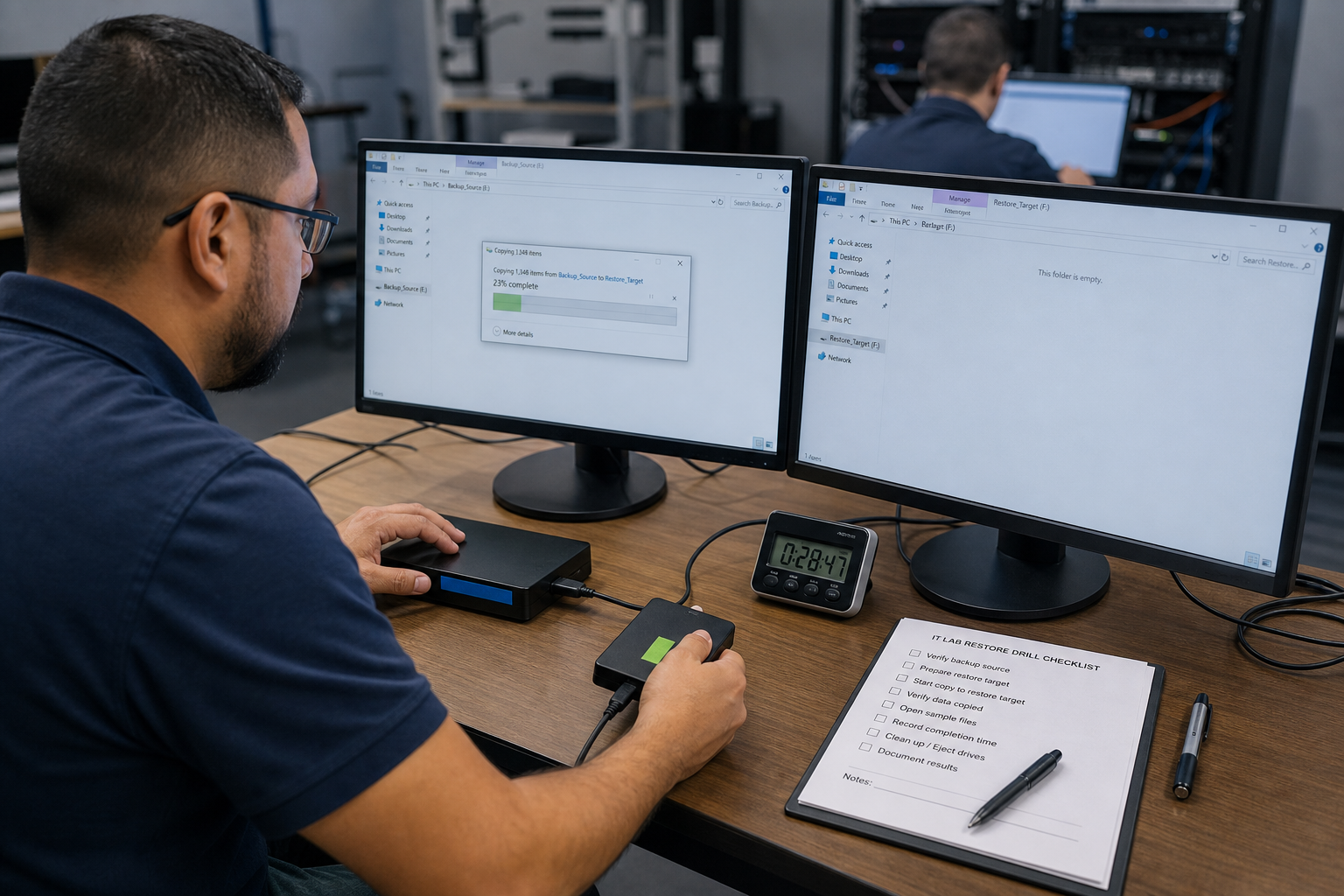
Restore a slice — one folder, one mailbox folder — to a location named for the incident date. Open PDFs, Office files, and a few threads with attachments. If samples are wrong, stop. Restoring the entire tree on top of live data is how you destroy a newer copy that survived in another user’s My Drive.
Write a five-line incident log: what disappeared, when, who froze what, what you restored, what is still missing. That log is the handoff to the next hour (backup copy, vendor ticket, or legal).
What not to do
- Re-enable sync “just to see if it comes back.”
- Restore over the production path before sampling.
- Assume Takeout will include items already gone from Google.
- Wipe the suspect laptop before you image it if you may need forensics.
Related reading
For overwrites, use version history restore. If recycle is already empty, continue with when native recovery windows expire.