Free Google Drive Backup for Windows: A Better Approach Than One-Off Takeout
Learn how to keep an ongoing local backup of Google Drive on Windows — incremental, scheduled, and recoverable — without paying for another cloud vault subscription.

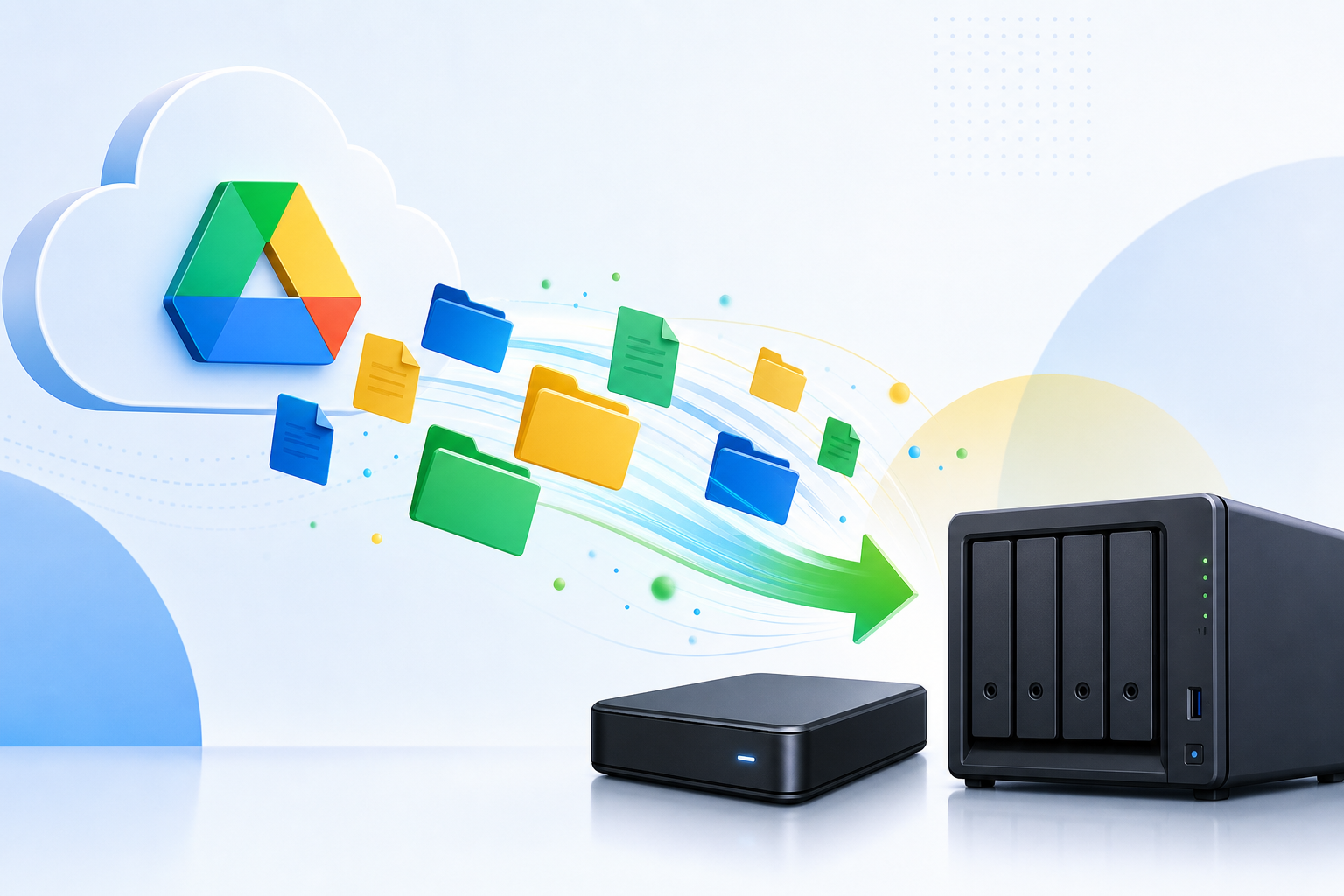
- Google Takeout is great for archives, not for continuous protection or fast file-level restore.
- Local Drive backup on Windows gives you ownership, predictable cost (often $0), and offline resilience.
- Schedule incremental runs so large Drive trees do not re-download every night.
- Verify restores — a backup you have never tested is only a hope.
Why Google Drive still needs its own backup plan
Google Drive is reliable infrastructure — but reliability is not the same as recoverability for your mistakes. A wrong bulk delete, a sync client that overwrites files, a compromised account, or a departing employee who empties a Shared Drive can erase work that Google’s platform uptime never promised to reverse on your timeline.
Independent backup means you hold a copy you can restore without opening a support ticket or waiting on export windows.
Where Google Takeout helps — and where it falls short
Explore Google Workspace Backup
Domain-wide Gmail, Drive, Calendar & Contacts backup — plans from $19.
Learn moreGoogle Takeout is excellent when you need a point-in-time archive: leaving an organization, migrating vendors, or storing a yearly snapshot. It is a weak everyday backup strategy because:
- Exports are manual (or awkwardly scheduled) and slow for large Drive trees
- You often get a zip archive rather than a browsable live mirror
- Restoring a single folder means unpacking a huge package
- It does not track incremental changes the way backup software does
What “good” local Drive backup looks like on Windows
A modern local Drive backup workflow should include:
- OAuth sign-in — no password scraping; revoke access anytime from Google Account settings
- Incremental sync — only changed files move after the first pass
- Schedules — nightly or hourly without babysitting the UI
- Clear restore paths — pull a folder or file back without rebuilding the whole tree
- Local ownership — data lands on your disk, NAS share, or encrypted volume
A practical setup checklist
1. Decide what “done” means
List My Drive, shared with me (if needed), and Shared Drives. Not every shortcut belongs in backup scope.
2. Pick destination storage with headroom
Drive trees grow. Leave 20–30% free space and prefer a volume that is not the same disk you use for daily downloads.
3. Run a pilot on one account
Validate file counts, permissions notes, and a sample restore before you enroll the whole team.
4. Automate, then audit
Schedules fail quietly when tokens expire. Review last-success timestamps monthly.
Free does not have to mean fragile
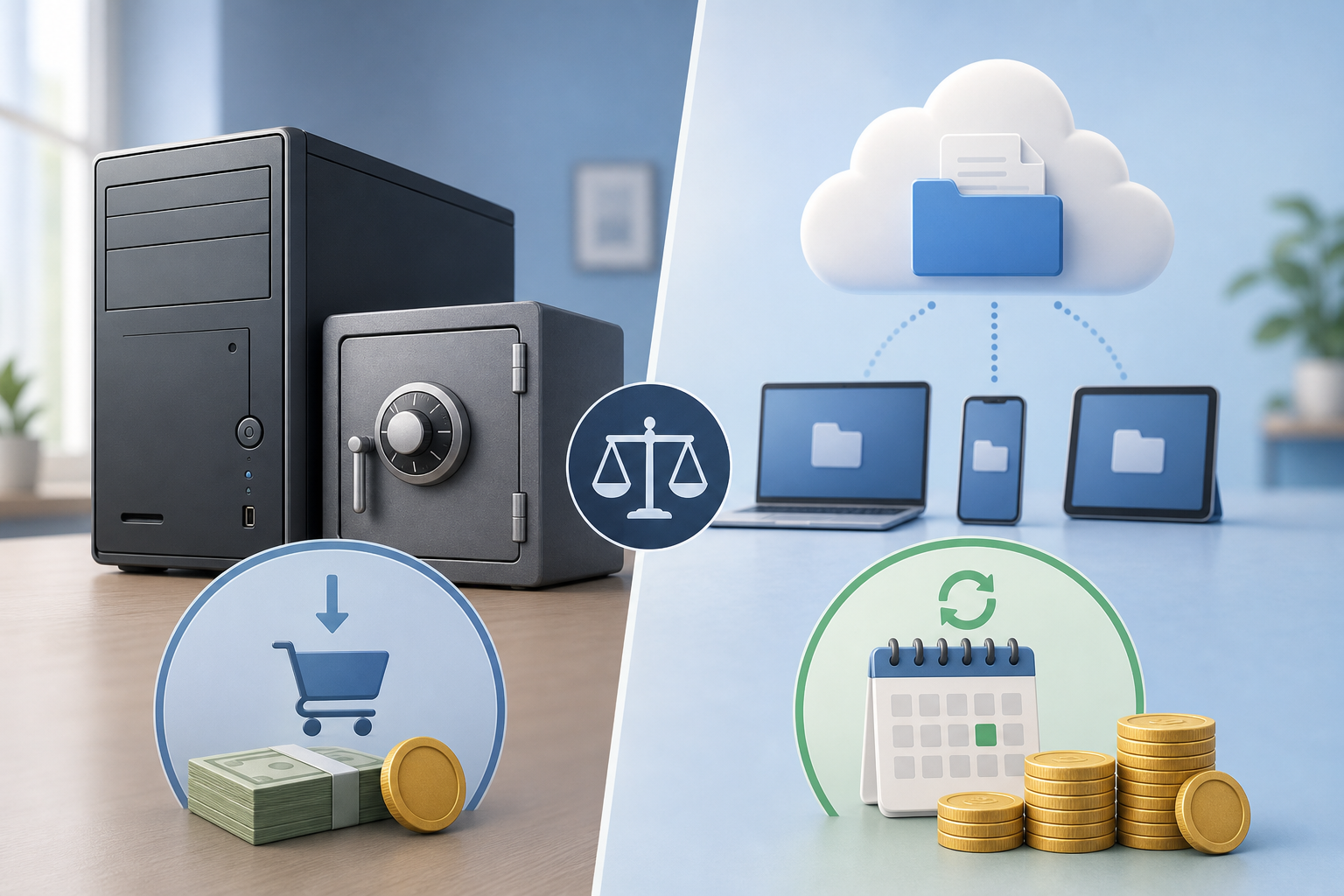
Subscription vaults charge per user every month — useful for some regulated estates, expensive for individuals and small teams who already have disks. A free Windows Drive backup tool can deliver continuous protection without turning file safety into another SaaS line item.
If you also need Gmail, Calendar, and Contacts under one policy, step up to a Workspace-oriented product — but for Drive-only needs, start local and keep it simple.
External references
Recommended next step
Download Google Drive Backup — Free
Local Google Drive backup for Windows. No subscription required.
Frequently asked questions
Related articles


Get the IT backup checklist
A one-page policy template for Gmail, Drive, Calendar, and Microsoft 365 — plus new guides when we publish. Questions? Email support@celerosoft.com.