Google Drive Files Deleted? How to Restore Them Without Waiting on Takeout
A practical recovery playbook for accidental deletes, sync overwrites, and Shared Drive mistakes — including what Google’s Trash can do and when you need an independent copy.

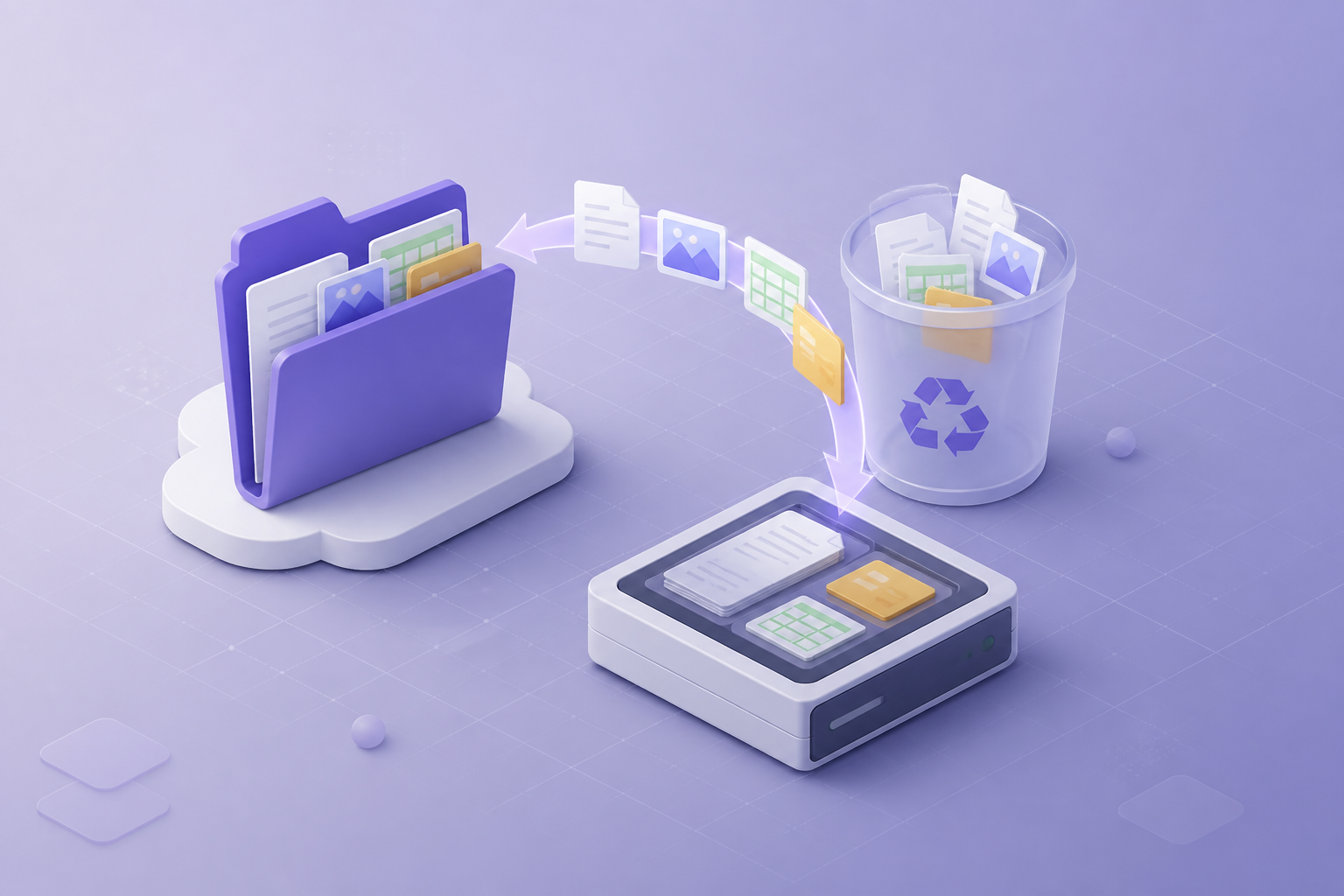
- Act quickly: Google Trash and version history are time-boxed, not a permanent archive.
- Identify whether the file lived in My Drive, Shared with me, or a Shared Drive — restore paths differ.
- Takeout is a last-resort archive, not a file-level restore tool.
- An independent local copy is what makes restore predictable when Trash has already emptied.
Start with the type of loss
Not every “missing file” is the same incident. Before you open Takeout or rebuild a folder from email attachments, classify the event:
- Accidental delete — user or admin removed an item
- Sync overwrite — a desktop client replaced a newer file with an older copy
- Shared Drive ownership change — a departing manager emptied or reorganized a drive
- Account lockout — you still have the data in Google, but you cannot sign in
Each path has a different first action. Mixing them wastes the Trash window.
What Google can restore natively
Explore Google Workspace Backup
Domain-wide Gmail, Drive, Calendar & Contacts backup — plans from $19.
Learn moreTrash
Check Drive Trash (and Shared Drive trash if you are a manager). Restore restores location when the parent folder still exists. If the parent is gone, restore to My Drive and re-file manually.
Version history
For overwritten Office files and Google Docs, open version history and revert. This helps sync mistakes. It does not help if the file itself was permanently deleted.
Admin tools
Workspace admins can sometimes recover user data within Google’s documented windows. Personal Gmail/Drive accounts have fewer admin levers.
When Takeout is the wrong tool
Google Takeout is designed for portability and offboarding archives. It is a poor emergency restore because exports are slow, coarse, and not incremental. If the file is already gone from Google, Takeout will not bring it back.
Use Takeout when you still have access and need a bulk snapshot — not when a designer needs yesterday’s folder in the next hour.
A file-level restore workflow that actually works
- Record the original path, owner, and last known good time
- Search Trash and admin recovery first
- If you maintain a local Drive backup, restore that folder to a side path (never overwrite the live tree until you verify)
- Open a sample of PDFs and Office files
- Copy verified files back into Drive or keep them local
The side-path rule prevents a bad restore from destroying a newer copy you did not know existed.
Prevent the next incident
- Limit who can delete in Shared Drives
- Turn off “empty trash” habits during offboarding until IT has a snapshot
- Keep an independent Windows backup of critical Drive trees — incremental, scheduled, and tested
If you want a local, ongoing copy of Drive on Windows, see our guide on continuous Drive backup versus Takeout and the free Google Drive Backup product page. Teams that also need Gmail and Calendar should look at Google Workspace Backup.
Recommended next step
Download Google Drive Backup — Free
Local Google Drive backup for Windows. No subscription required.